What it does
Auto-detect references
Opens an email? CargoMind automatically finds container numbers, job references, and MBL/HBL from the subject and body.
Full job details
See ports, vessel, ETA, containers, milestones, and customs status instantly in the taskpane.
Manual search
Search any job or container number directly from the Outlook sidebar.
Upload to CargoWise
Send email attachments and EML files directly to CargoWise eDocs in one click.
Install the add-in
Outlook Web & New Outlook
Install via the browser — the add-in syncs to all your Outlook clients automatically.
- Download
cargomind-manifest.xmlusing the button above - Open https://aka.ms/olksideload
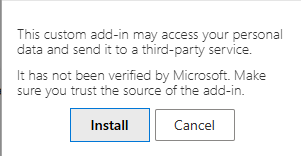
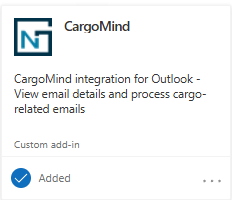
- Under "Custom add-ins", click Add a custom add-in > Add from file
- Select the downloaded
cargomind-manifest.xmland click Install
- In Outlook, click Get more apps > My add-ins
- Under "Custom add-ins", click + Add a custom add-in > Add from URL
- Paste:
Classic Outlook Desktop
For Classic Outlook on Windows, download and run the installer batch file.
- Download and run
CargoMind-Install.bat - The installer will check for Node.js (installs it automatically if missing)
- Sign in with your Microsoft 365 account when prompted
- Restart Outlook — the add-in will appear in the ribbon
Install:
Uninstall:
Personal Microsoft Account
For personal accounts (@outlook.com, @hotmail.com, @live.com), install through Outlook on the web.
cargomind-manifest.xml file using the button above. You'll need it in Step 4.
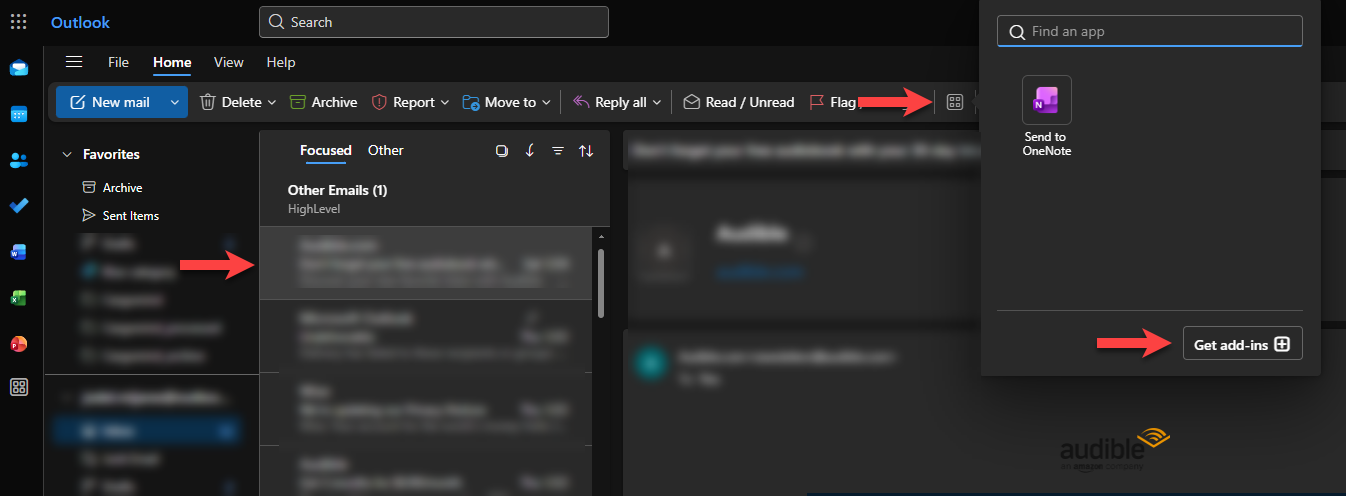
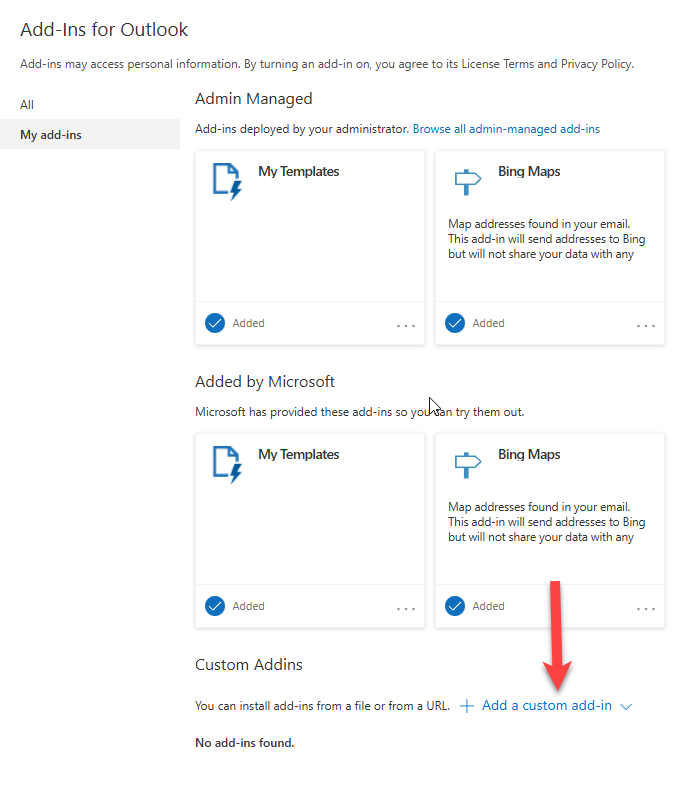
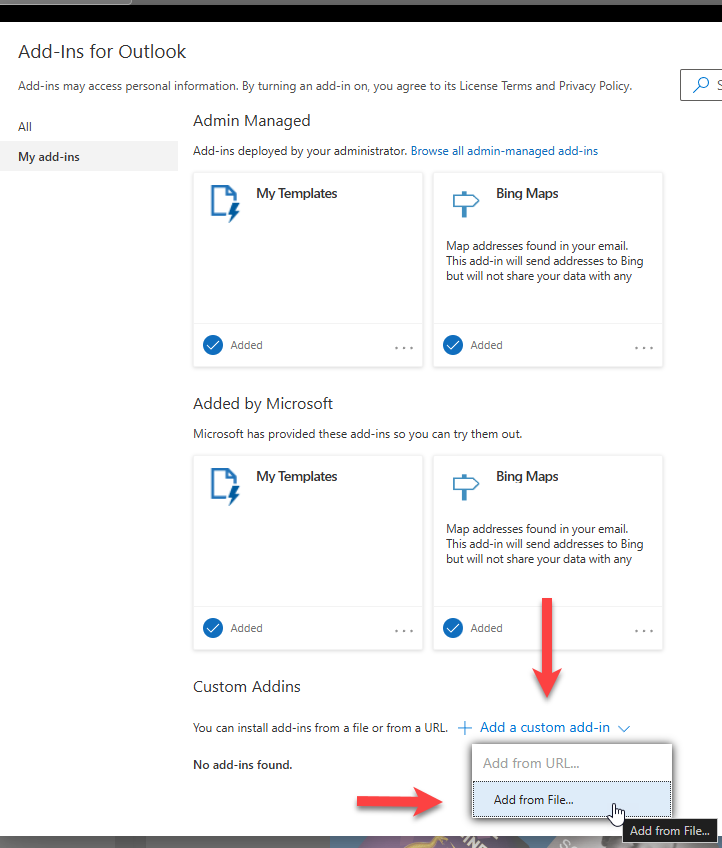
cargomind-manifest.xml file.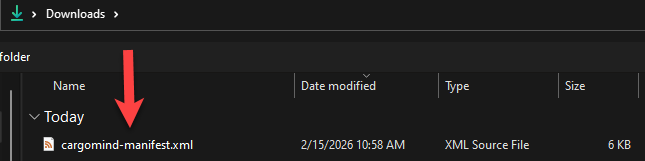
aka.ms/olksideload shortcut or the automated .bat installer. The manual upload shown above is the supported method for personal accounts.
How to use
Open any email in Outlook
The add-in activates automatically when you open an email.
Click CargoMind Enhance in the ribbon
Find the button in the toolbar or under the "..." overflow menu.
Auto-detect fires instantly
The taskpane scans the email for container numbers (e.g. CSNU2663430) and job references (S*, C*, B*) automatically.
View shipment details
See shipment, consol, brokerage, and bill of lading details — or upload attachments to CargoWise eDocs.
manifest.xml — your login determines which client data you see.